Auto-create Jira task after submitting Google Form
Author: Kamil Bobrowski
Problem context
Often Google Forms collect various information and analyze it. Then (if these were the assumptions of the form), we manually create tasks to Jira - this is a typical process.
Manual work is always slower compared to the automated process.
At the same time, when we have several or more automated processes, our productivity grows up.
We can use every saved moment to do something more or relax.
Solution
Using Make we can automate the process to add tasks to Jira after submitting Google Form. This is a simple process because we use a no-code / low-code tool.
For a better explanation I described how automatization was created for Automa.
-
The first step is to prepare a Google Form with interesting inputs
Image nr. 1 - Google Form from Automa Comment 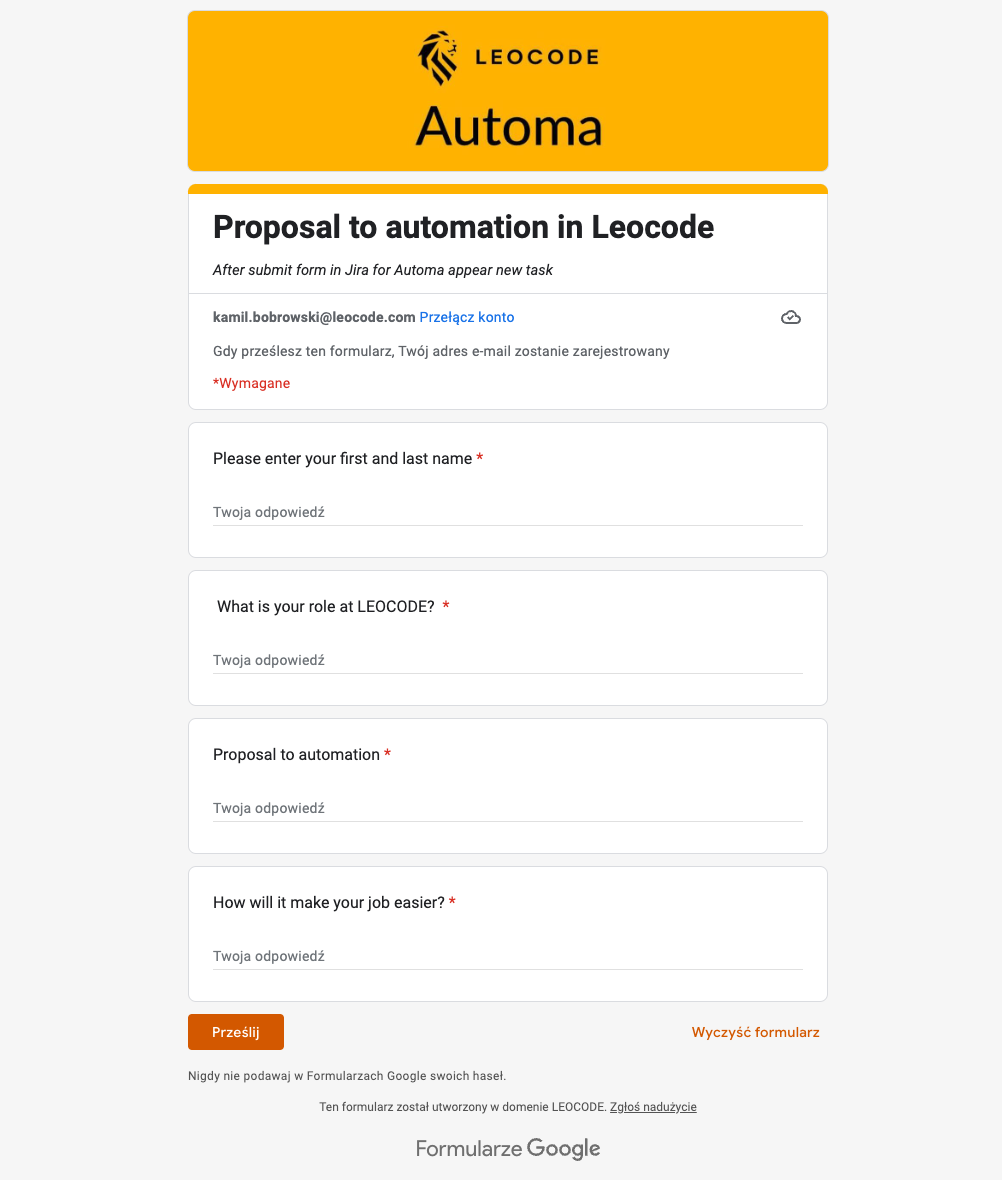
Good practice for auto-create tasks in our management system is when all inputs are required. This will allow to always to maintain the same structure of tasks. Reviewing them will be helpful because our eyes will be directed to the most important content. Good for people who want to add a task to our project is when questions are simple and do not evoke negative emotions - simple is better. For our inputs, we need a database; when we use Google Forms a regular choice is a Google Spreadsheet.
Image nr. 2 - Database for answers in Google Spreadsheet 
In our database, column names are the same exact text, which are questions from our Google Form.
-
Step two - Create a scenerio in Make
As we always do for the first step now we can use Make.
Below this is all scenario for the automatization process. On the left side, we have a connection to Google Spreadsheet, and on the right side, we have a reference to a specific project on Jira.
Image nr. 3 - Make Scenario Comment 
Google Sheets icon have clock because in Make this is the way to show a trigger to operation. 2.1. Prepare left side - Google Spreadsheet
Connection triggers element for Google Drive and chooses current Google Spreadsheet.
Image nr. 4 - Make Scenario Left Side Comment 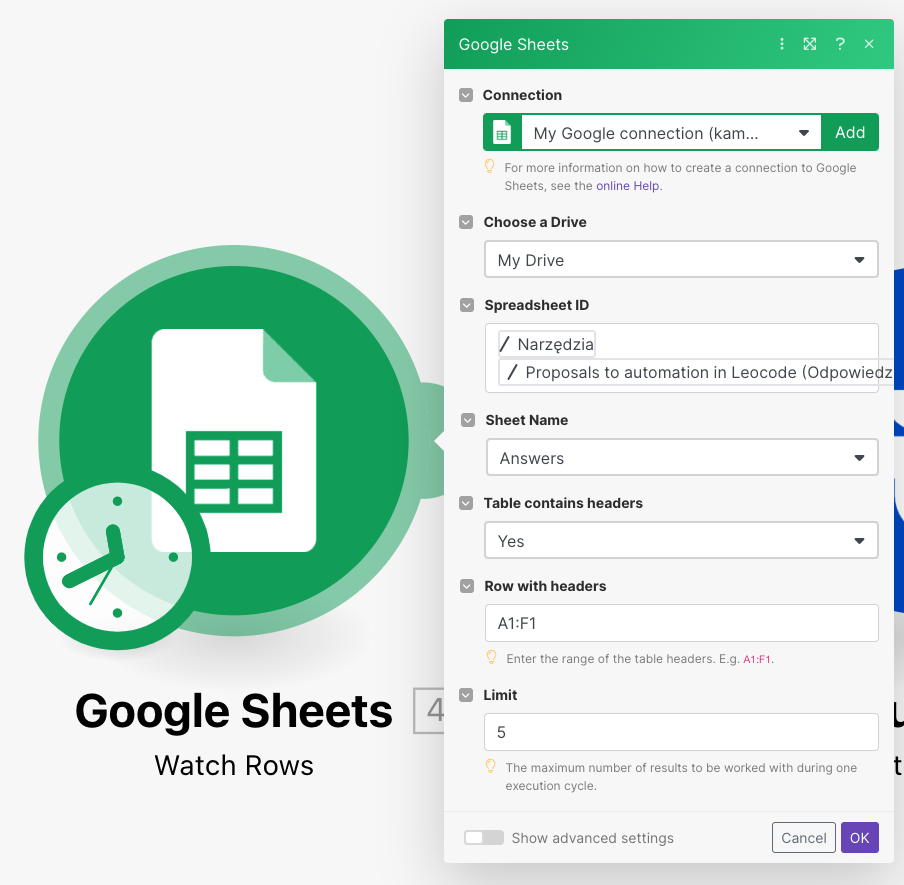
Property Limit is good to adjust for scheduled operation for optimal use resources in you Make account, because resources are limited in the form of operations and data transfer. 2.2. Prepare right side - Jira
In this step, you must connect Make to your Jira account.
Image nr. 5 - Make Scenario Rigth Side Comment 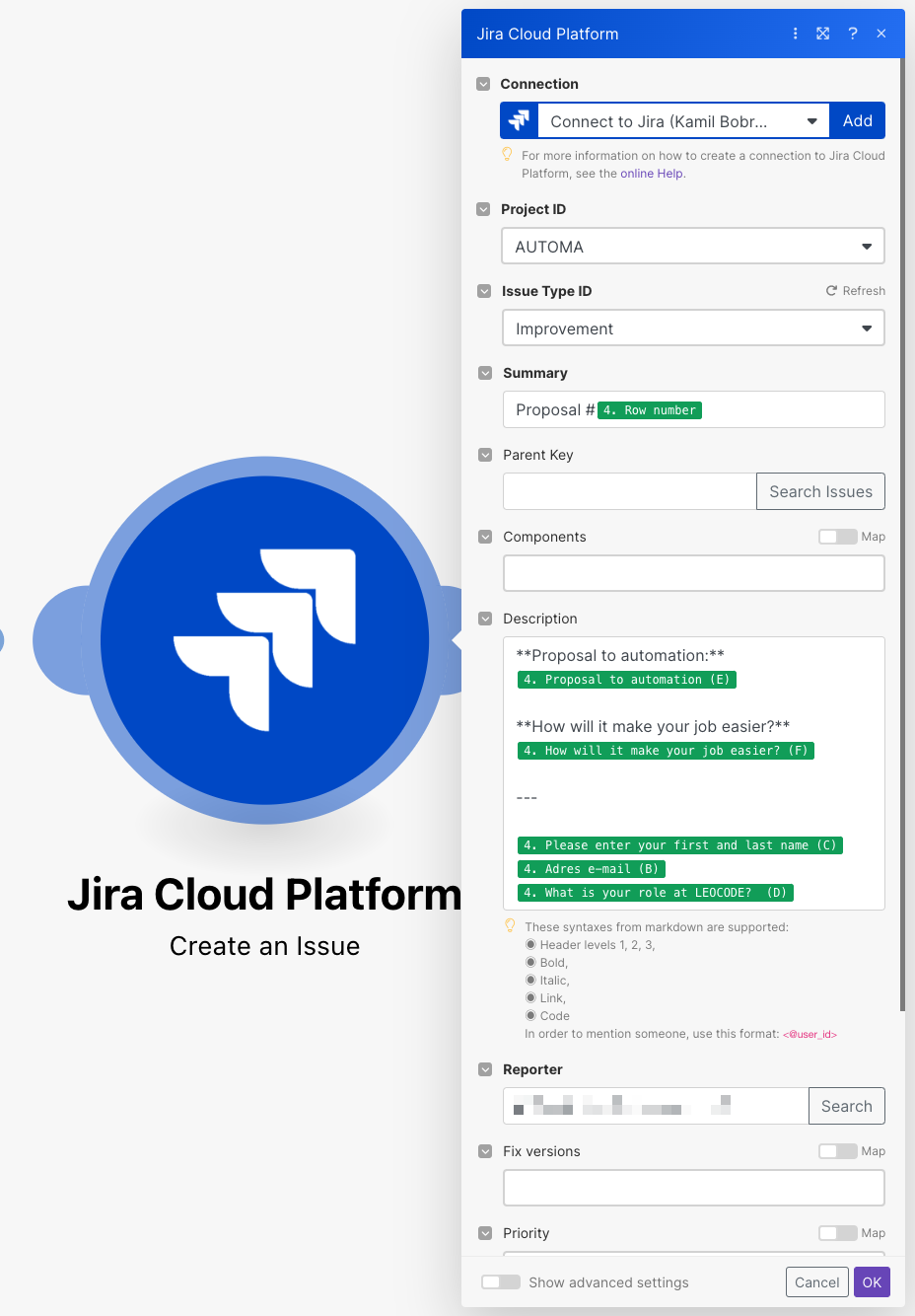
Summary - define the title of the task, Description - define task structure and use value from Google Spreadsheet (Here you can use markdown but not always works), Reporter - choose an account from Jira which will create a task. -
Last step - Schedule settings
When your scenario is done, you can adjust his schedule settings. To open the schedule, click the button on the bottom left side.
Image nr. 6 - Database for answers in Google Spreadsheet 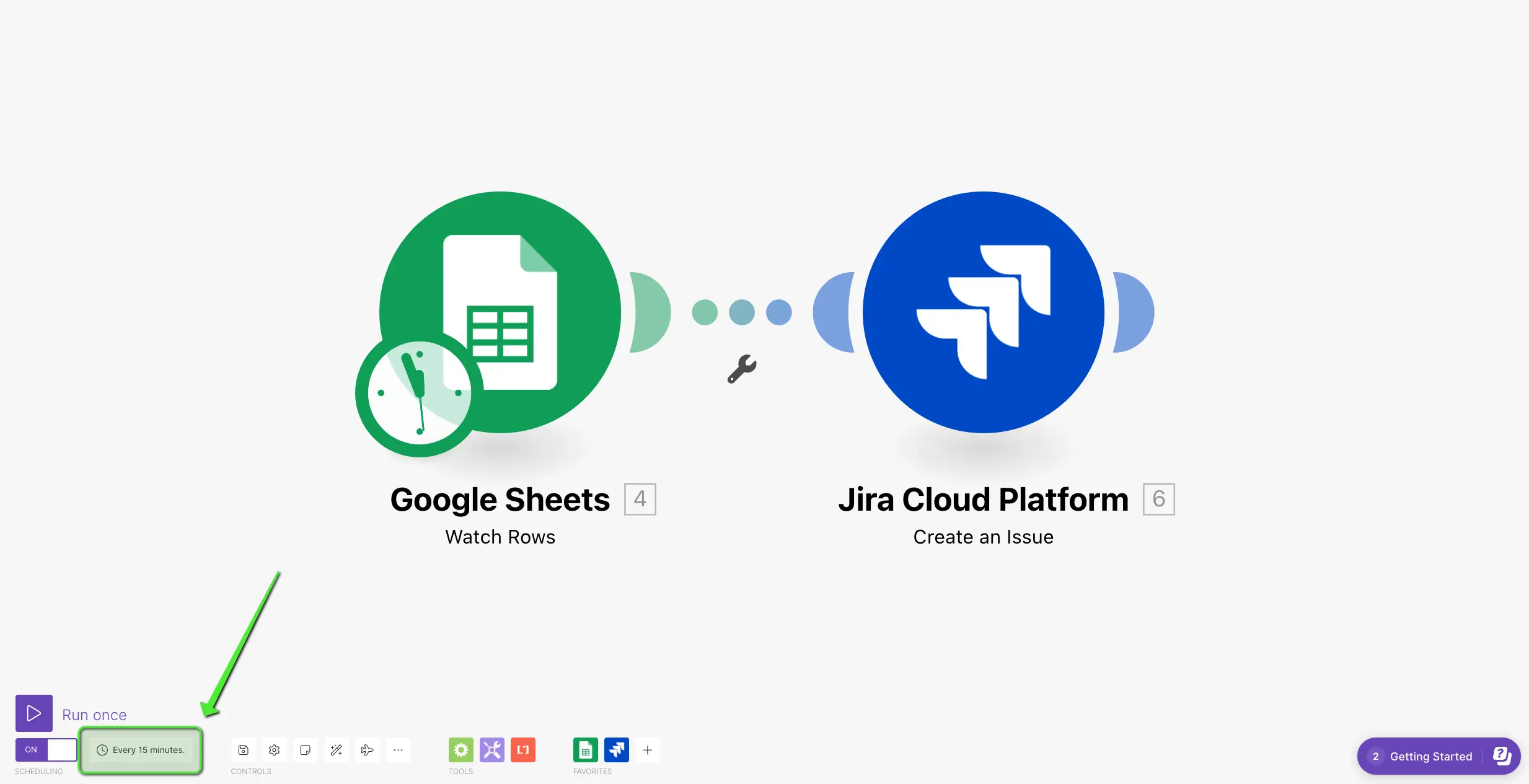
And now you can adjust your schedule for your scenario
Image nr. 7 - Make Scenario Comment 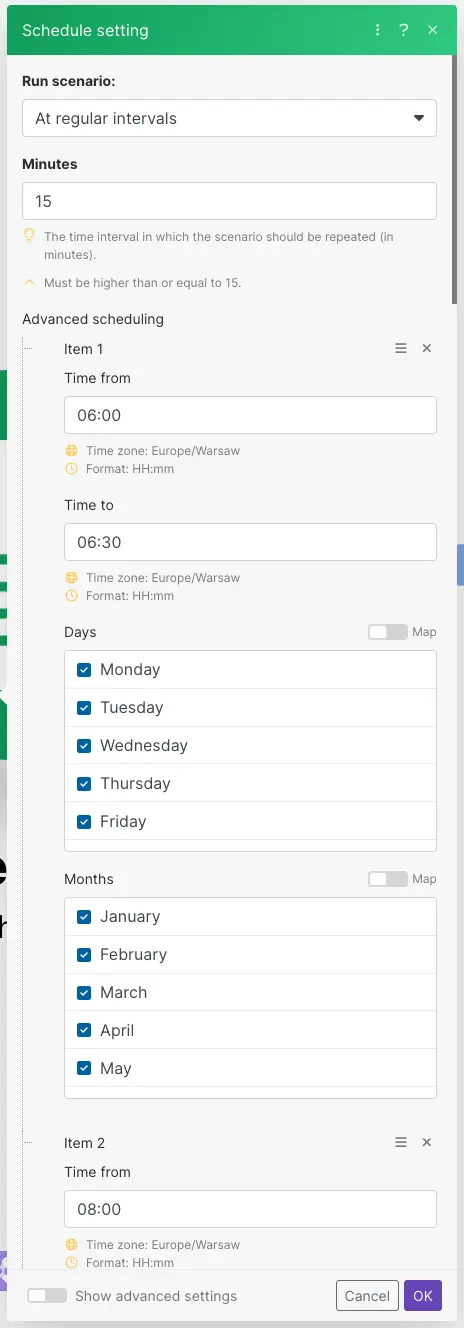
You can customize the time to run the scenario with any the hour, days of the week and months.
Result in Jira after submitting Google Form
| Image nr. 8 - Automatisation presentation | ||
|---|---|---|
Google Form 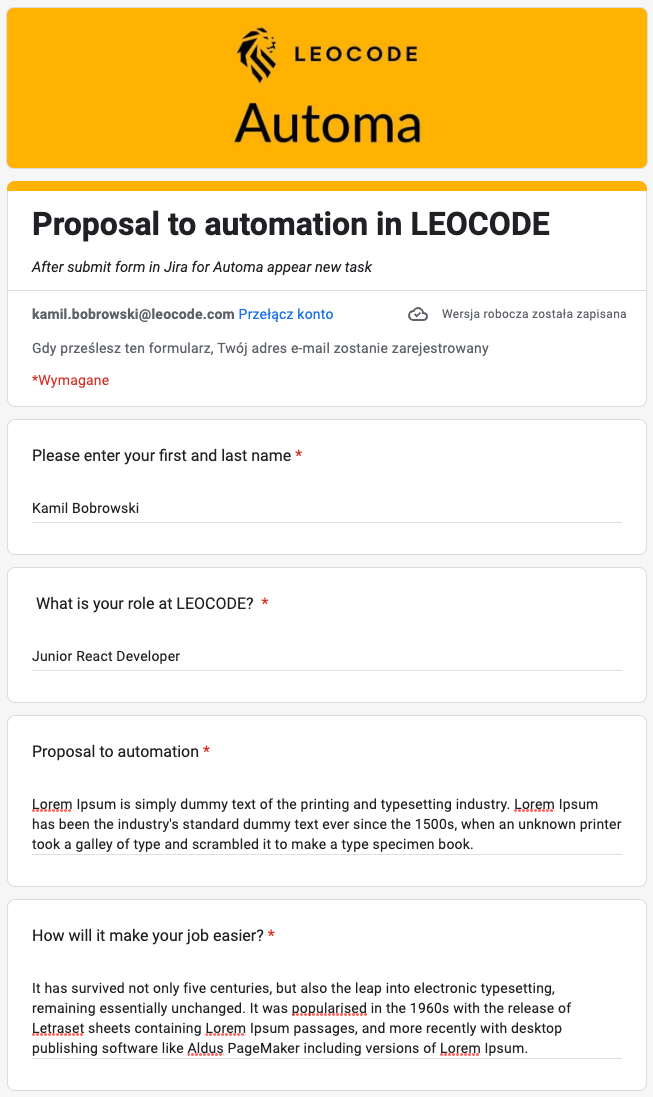 |
Make Scenario  Jira Jira 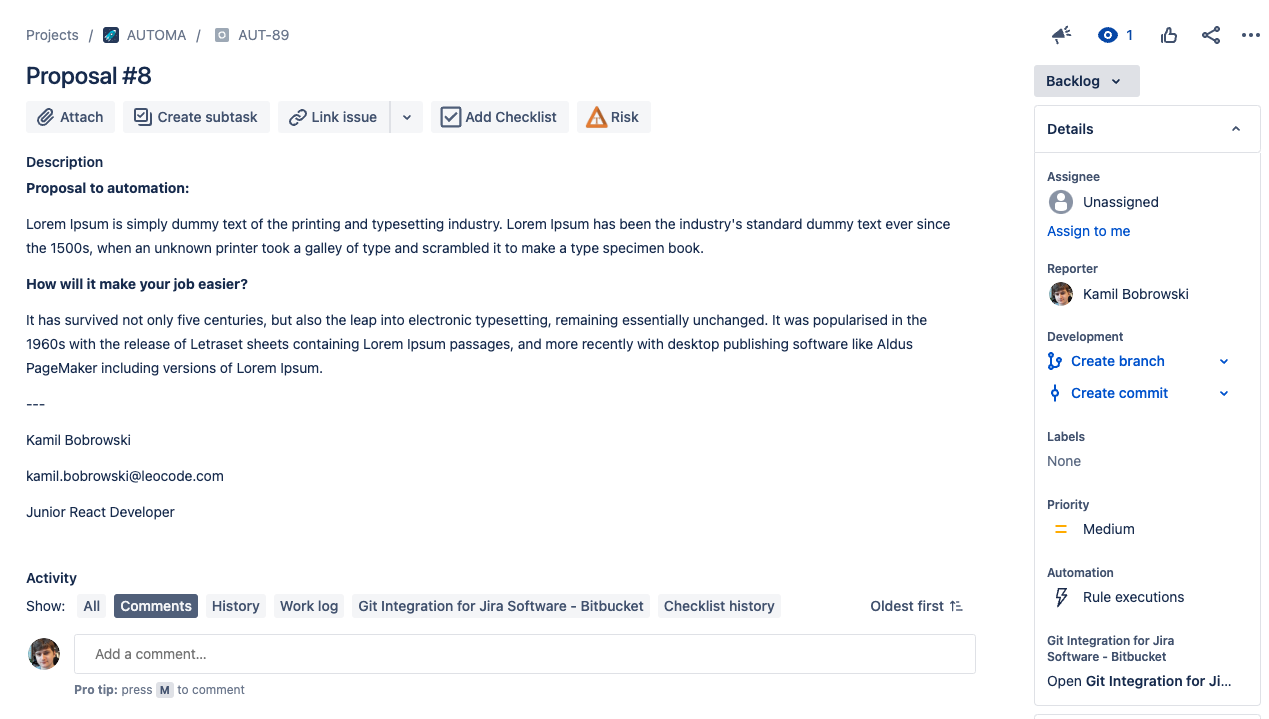 |
Summary
Automation is the future, because Make and other such tools can help us with the monotonous activities which occupy our time every day. We can focus on creative work by removing tedious tasks from our schedule
First of all automation can save us from mistakes when performing repetitive tasks.
The advantages of using automation:
- Save time and increase efficiency, as repetitive tasks are performed by the program without the need to perform them manually.
- Avoiding mistakes because the program is able to perform repetitive actions without errors and repetition.
- Increased reliability, as automation allows repetitive tasks to be performed at fixed times.
- Enabling you to focus on crucial tasks, as automation allows you to move away from repetitive activities and focus on more valuable tasks.